


Hi there,
When working in Salesforce, List Views are one of the most commonly used features by admins and end users. They help users quickly filter, view, and manage records without writing any code or reports.
In this blog, we’ll cover what List Views are, how to create one, how sharing works, and how to configure fields — with a simple example.
What is a List View?
A List View is a filtered view of records for a specific object, such as Leads, Accounts, Contacts, or Opportunities. It shows only the records that match the conditions you define.
For example, a List View can show:
- All open Opportunities
- Leads created this week
- Accounts owned by the current user
How to Create a List View
Let’s take a simple example using the Lead object with a different and more specific use case.
Steps:
- Go to the Leads tab
- Click the List View controls (gear icon)
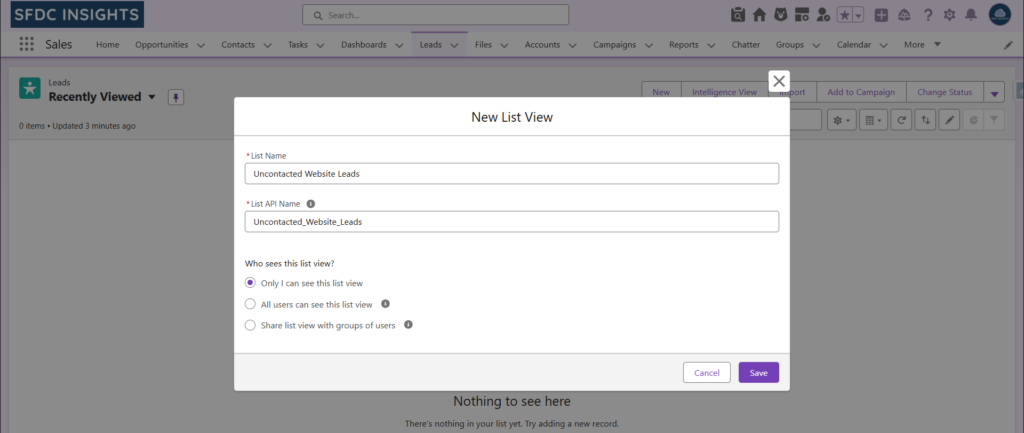
- Click New
- Enter a List View name, for example: Uncontacted Website Leads
- Choose who can see this List View
- Click Save
Adding Filters
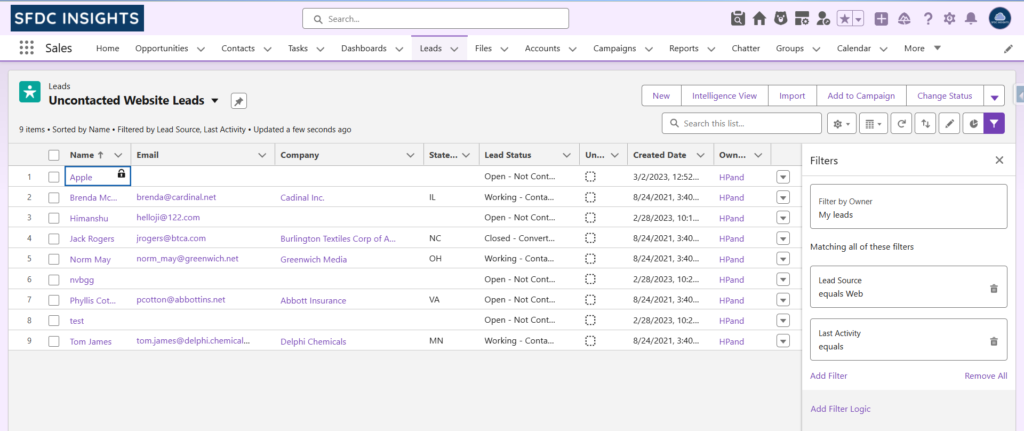
For our example, add the following filters:
- Field: Lead Source
Operator: Equals
Value: Web - Field: Last Activity
Operator: Equals
Value: Blank
This List View shows website leads that have not been contacted yet.
Configuring Fields (Columns)
You can control which fields appear in the List View.
Steps:
- Open the List View
- Click List View controls
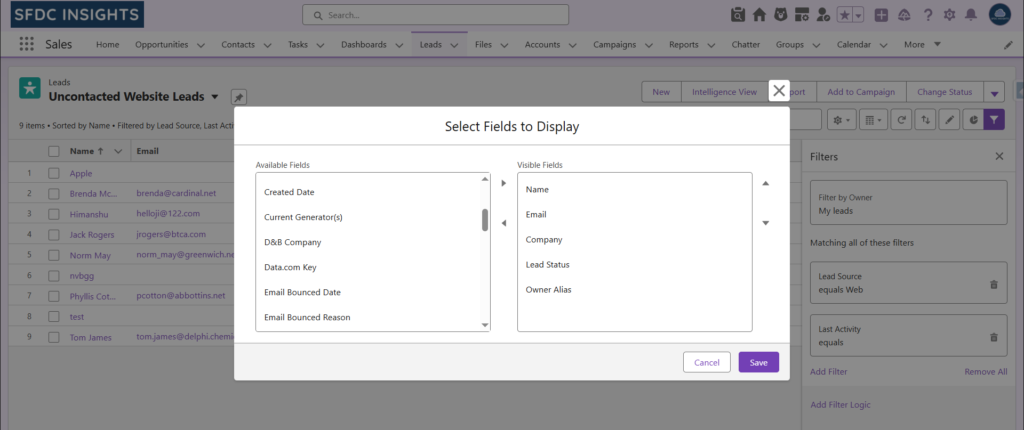
- Select Select Fields to Display
- Add fields like:
- Name
- Company
- Lead Status
- Owner alias
- Save your changes
These columns help users quickly understand key details without opening each record.
List View Sharing Settings
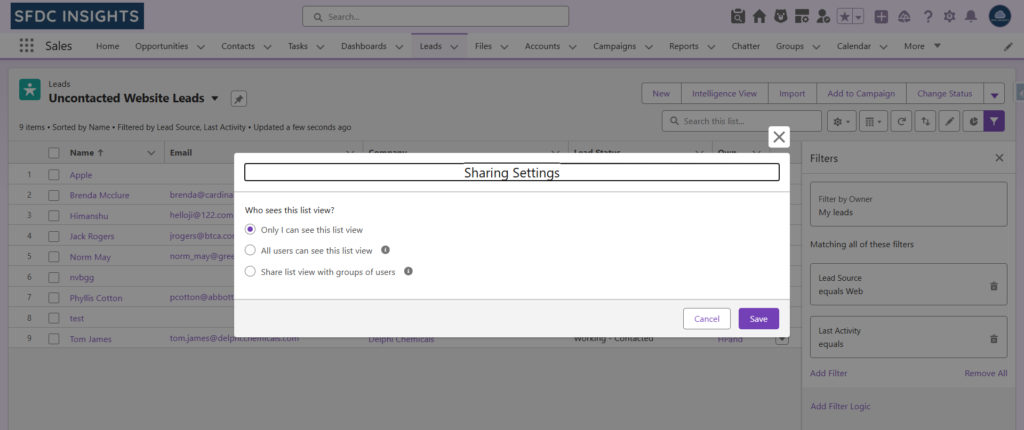
While creating a List View, Salesforce asks who should see it. You can choose:
- Only I can see this list view
- All users can see this list view
- Share with groups of users (roles, public groups, or territories)
This allows admins and users to control visibility without affecting record-level security.
Conclusion
List Views are a simple yet powerful way to work efficiently in Salesforce. With just a few clicks, users can filter records, choose the right fields, and share useful views with their team.
They are often the first feature new Salesforce users learn — and one of the most used in daily work.
More practical Salesforce basics coming soon on SFDC Insights.