


Hi there,
Compact Layouts in Salesforce are one of those features that quietly do a lot of work in the background. You may not notice them at first, but once they’re set up properly, they make record pages, lookup hovers, and mobile views much more useful.
In this blog, we’ll understand what Compact Layouts are, where they appear, and how to create and assign them using a simple, practical example.
What are Compact Layouts in Salesforce?
A Compact Layout controls which fields are shown in the highlight area at the top of a record page. It also decides what information appears when you:
- Hover over a lookup field (for example, hovering over Account on an Opportunity)
- View records in the Salesforce mobile app
Think of a Compact Layout as a quick summary of the most important information about a record.
Where Do Compact Layouts Appear?
Compact Layouts are used in multiple places:
1. Highlight Area on Record Page
When you open a record (like an Opportunity), the fields from the active Compact Layout appear at the top of the page in the highlight panel.
2. Lookup Hover Details
If an Opportunity has an Account selected and you hover over the Account name, Salesforce shows the fields from the active Compact Layout of the Account object.
Each object uses its own Compact Layout, even when viewed from another object.
3. Salesforce Mobile App
On mobile devices, screen space is limited. Compact Layouts are especially important here because:
- Only Compact Layout fields are shown first
- Users get a quick view without scrolling
This makes Compact Layouts very useful for users working on the go.
Example: Compact Layout on Opportunity
For this blog, we’ll work with the Opportunity object. It’s a great example because it’s widely used and benefits a lot from the quick visibility of key fields.
Fields We’ll Show in the Opportunity Compact Layout
We’ll use only standard fields:
- Opportunity Name
- Account Name
- Stage
- Amount
- Close Date
- Owner
These fields answer the most common questions at a glance:
- Which deal is this?
- Who is the customer?
- What stage is it in?
- How much is the deal worth?
- When is it expected to close?
How to Create a Compact Layout
Follow these steps:
- Go to Setup
- Open Object Manager
- Select Opportunity
- Click on Compact Layouts
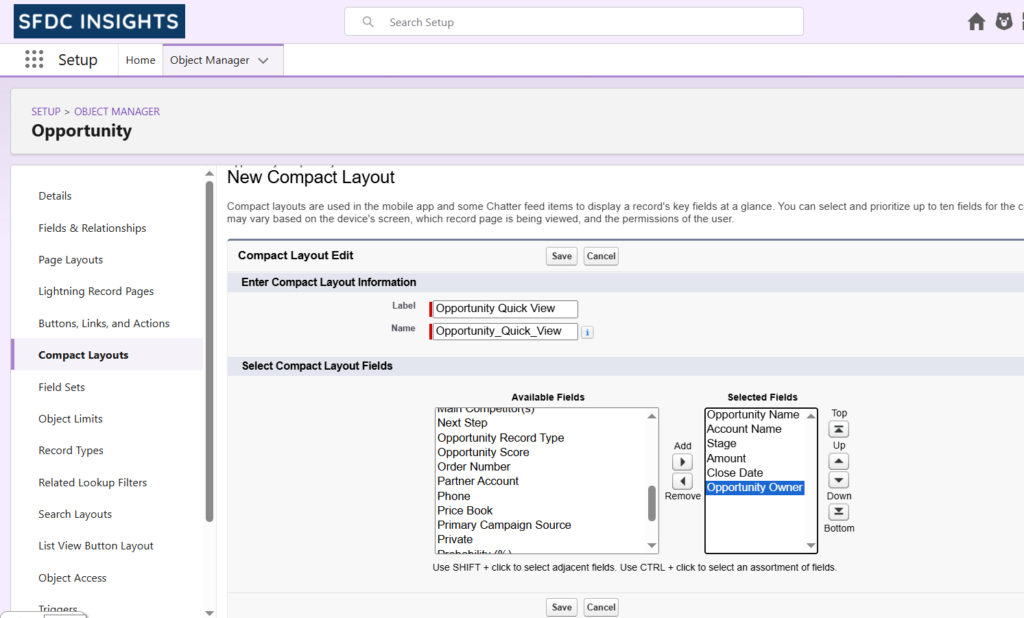
- Click New
Now fill in the details:
- Label: Opportunity Quick View
- Name: Opportunity_Quick_View (auto-filled)
Select Compact Layout fields
- Move the following fields from Available to Selected:
- Opportunity Name
- Account Name
- Stage
- Amount
- Close Date
- Opportunity Owner
- Click Save
You’ve now defined what information should appear in the highlight area, lookup hover, and mobile view.
Assign the Compact Layout
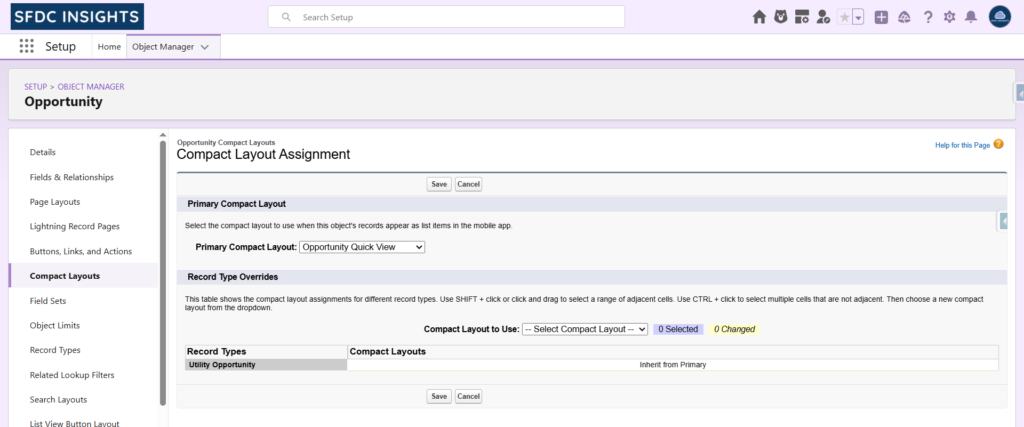
Creating a Compact Layout is not enough. You must assign it.
- Go back to Compact Layouts on the Opportunity object
- Click Compact Layout Assignment
- Click Edit Assignment
- Select Opportunity Quick View as the primary layout
- Click Save
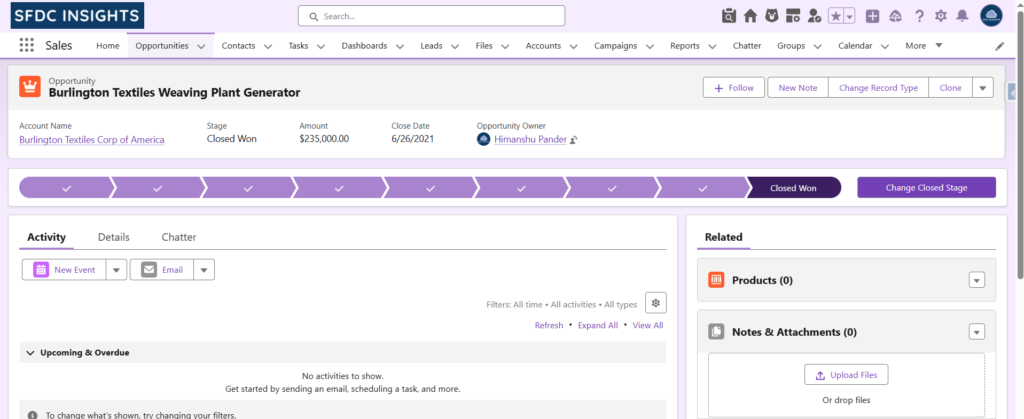
Once assigned, Salesforce starts using this layout immediately.
What happens after the assignment?
After assignment:
- The Opportunity record page shows these fields in the highlight area
- Hovering over Opportunity in lookups shows these fields
- Salesforce mobile users see these fields first
No page refresh or deployment is required.
Why Compact Layouts Matter
Compact Layouts help because they:
- Reduce scrolling
- Show only what’s important
- Improve mobile usability
- Make lookup hovers more informative
They’re handy for sales teams who need fast answers, not full pages.
Compact Layouts vs Page Layouts
A quick comparison:
- Compact Layouts: Control the highlight area, lookup hover, and mobile summary
- Page Layouts: Control the full record detail section
Both work together, but they solve different problems.
Final Thoughts
Compact Layouts are small, easy to configure, and often ignored—but they make a big difference in daily Salesforce usage.
If you want cleaner record pages, better lookup hovers, and a smoother mobile experience, setting up Compact Layouts properly is worth it.
Stay tuned for more practical Salesforce learnings on SFDC Insights.