

Hi there,
If you’ve been exploring Salesforce AI, you’ve probably heard about Prompt Builder. But what exactly is it, and how do you start using it in your org? Don’t worry — this blog will explain it in simple terms and give you a practical example to try out today.
Prerequisites and Setup for Prompt Builder
Before you start creating prompts in Salesforce, it’s important to make sure your org is ready. These steps will help you avoid errors and get the most out of Prompt Builder.
What You Need Before Starting
- Einstein Generative AI Must Be Enabled
- Go to Setup → Einstein Setup and follow the steps to enable Einstein Generative AI.
- This may include accepting terms, connecting your org, and enabling required permissions.
- AI Permissions
- Make sure your user profile or permission set has access to the Einstein GPT and Prompt Builder features.
- Without these permissions, you won’t be able to access Prompt Builder or run prompts.
- Objects and Fields Ready
- Identify the object you want to work with, whether it’s standard (like Opportunity or Case) or custom.
- Ensure the fields you plan to use in prompts are available and accessible.
- Test Record Data
- Have at least one record ready for testing your prompt. This will help you preview how the AI generates results.
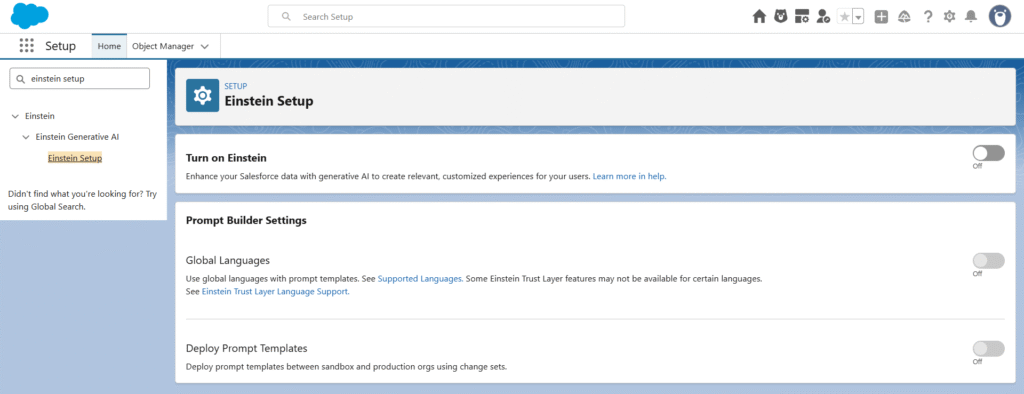
Step-by-Step: Enable Einstein and Open Prompt Builder
Here’s how to get everything set up before creating your first prompt:
- In Salesforce, click the Setup (gear) icon.
- In Quick Find, search for Einstein Setup and open it.
- Toggle Turn on Einstein on. This ensures all AI features are available.
- Refresh your browser so that all new settings load properly.
- In Quick Find, search for Prompt Builder and open it. This is where you will create and manage your prompts.
Once these steps are completed, your org is ready to build prompt templates.
What is Prompt Builder?
Prompt Builder is essentially your workspace for talking to Salesforce AI. Instead of writing code or building complex automation, you provide clear instructions — called prompts — and AI does the rest.
With Prompt Builder, you can:
- Summarize records automatically
- Get recommended actions
- Draft emails or messages
- Pull insights from your data
Think of it as giving Salesforce AI a friendly “job description” for exactly what you want it to do.
Why You Should Care
- Makes Salesforce AI easy to use, even if you’re not a developer
- Let you standardize prompts across your org
- Saves time and improves productivity
- Helps admins and developers experiment with AI without coding
Hands-On Example: Create a Field Generation Prompt
Let’s do a simple example. Suppose you want Salesforce AI to summarize an Opportunity record automatically.
Step 1: Open Prompt Builder
- Go to Setup → Einstein GPT → Prompt Builder
- Click New Prompt Template
Step 2: Define Your Prompt
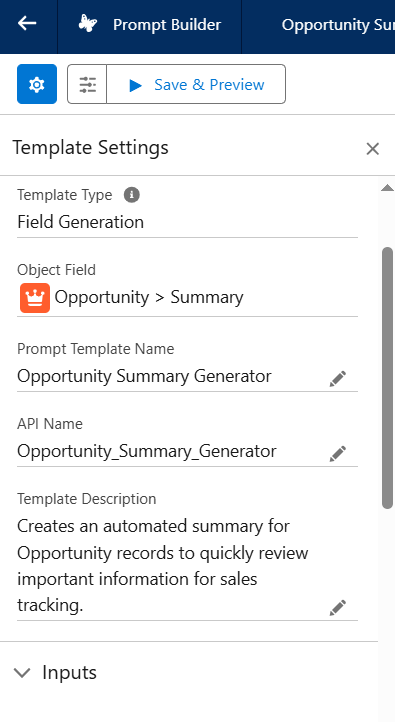
- Choose Prompt Template Type: Field Generation
- Give your prompt a name, like Opportunity Summary Generator
- Add description to the template:
Creates an automated summary for Opportunity records to quickly review important information for sales tracking. - Choose the OBJECT: OPPORTUNITY
- Choose the FIELD: SUMMARY
Step 3: Write the Instructions
Here’s an example prompt you can try in the editor:
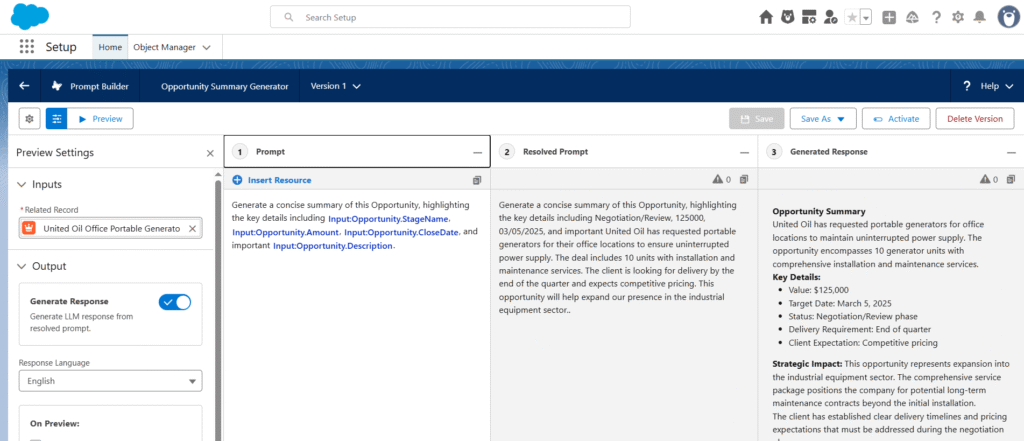
“Generate a concise summary of this OBJECT, highlighting the key details including STAGE, AMOUNT, CLOSE DATE, and important NOTES.”
All capitalized words (OBJECT, STAGE, AMOUNT, CLOSE DATE, NOTES) are placeholders. You need to replace them with actual fields or input resources from your Salesforce org.
How to Replace the Capitalized Words
- OBJECT → Replace this with the actual object name you want AI to work on.
Example: Opportunity, Case, Project__c - FIELDS like STAGE, AMOUNT, CLOSE DATE, NOTES → Replace each with the actual field API names or labels from your org.
Example: OBJECT → Opportunity, STAGE → {!Opportunity.StageName}, AMOUNT → {!Opportunity.Amount}, CLOSE DATE → {!Opportunity.CloseDate}, NOTES → {!Opportunity.Description} - Test Before Using → Always click Preview/Run to see how AI interprets your instructions. Make tweaks as needed.
By replacing placeholders with real fields or object names, you make the prompt ready to work with actual Salesforce data.
Step 4: Test Your Prompt
Before clicking Preview / Run, you need to select the Opportunity record you want to test your prompt on.
- In the Prompt Builder editor, look for the Record Selection section.
- Select an Opportunity record from your org that you want to use for testing.
- Example: “United Oil Office Portable Generators”
- Once the record is selected, click Preview / Run.
- The AI will read the dynamic fields you mapped (Stage, Amount, Close Date, Notes, etc.) from the selected record.
- Review the generated summary carefully:
- Check if all important details are included
- Ensure the formatting is readable and clear
- Verify that field values are correctly pulled from the Opportunity record
- If needed, adjust the instructions in the prompt editor to improve the summary output.
- Re-run the preview as many times as needed until the output matches your expectations.
Selecting a record first ensures that your prompt is tested on real data and generates meaningful AI insights before deployment.
Step 5: Save and Deploy
Once you’re happy, save the prompt. You can now use it in Flows, Action Buttons, or Einstein GPT integrations.
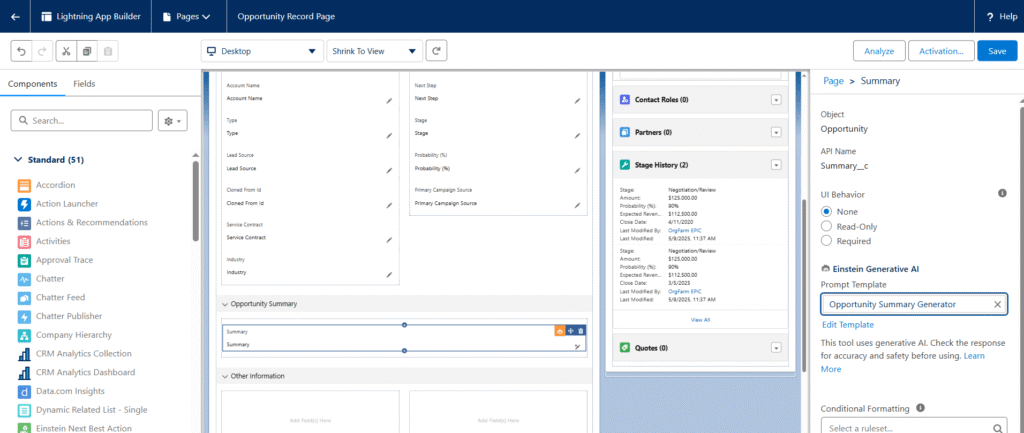
Step 6: Use the Prompt Template with Dynamic Forms
Once your prompt template is saved and activated, you can use it to populate a Summary field on the Opportunity record using Dynamic Forms.
- Open the Opportunity Record Page in Lightning App Builder.
- Locate the Summary field where you want the AI-generated content to appear.
- Click on the field → Set Field Visibility / Add Action (depending on your layout).
- Link the field to your Prompt Template:
- Choose the Prompt Template you just created.
- Select Opportunity as the object and map the relevant fields (Stage, Amount, Close Date, Notes) dynamically.
- Activate / Save the Lightning Record Page so that users see the summary field on the record.
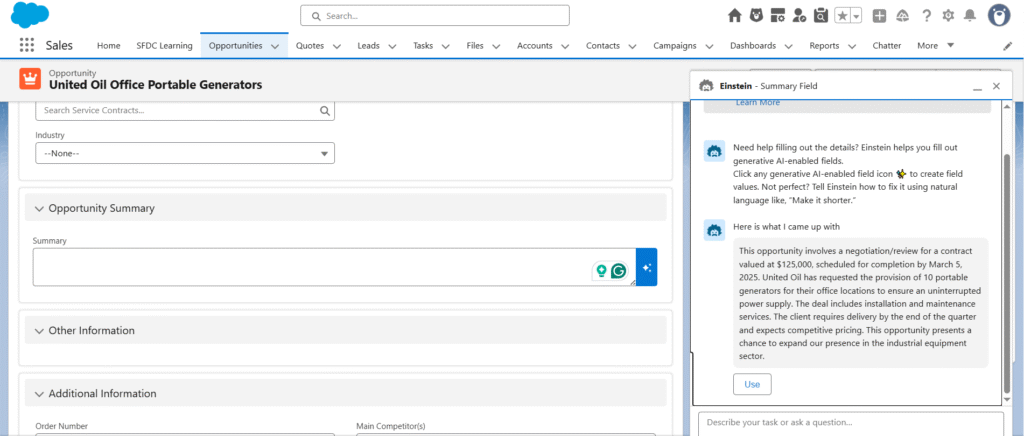
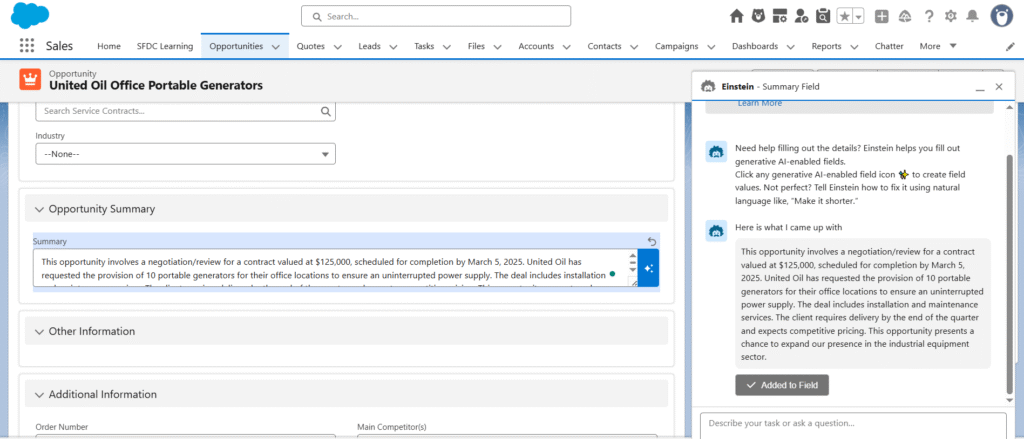
Now, whenever you view an Opportunity, the Summary field will automatically use your Prompt Template to generate a concise AI-powered summary based on the record data.
This allows you to:
- Automatically populate the field without manual data entry
- Display AI-generated insights directly on the record page
- Combine Dynamic Forms and Prompt Builder for smarter, context-aware records
Best Practices
- Keep instructions simple and clear
- Only include fields that matter
- Test with different sample records
- Save multiple versions for different scenarios
Pro Tip: Start small and practical — don’t worry about writing the “perfect” prompt at first. Hands-on experience will teach you the most.
If you found this guide helpful, explore more Salesforce insights and tutorials at SFDC Insights. New content is published regularly to help you learn, build, and grow on the platform.